
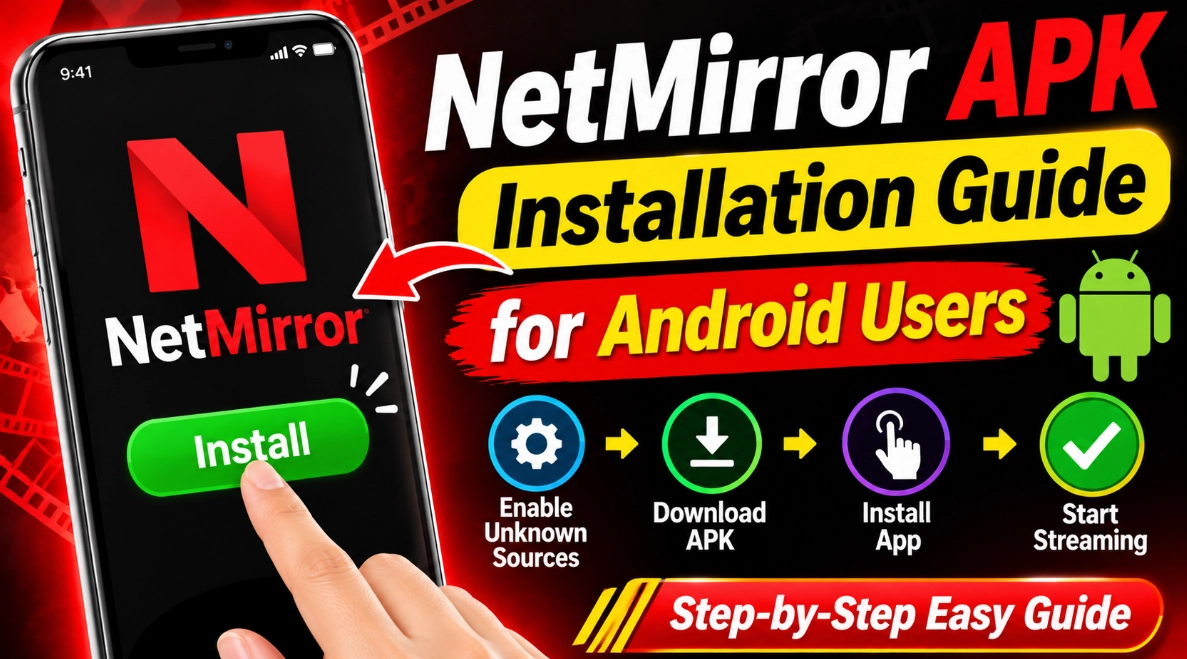
NetMirror APK Installation Guide for Android Users. Learn how to download, install, and use the app with simple steps.
NetMirror APK lets Android users access the app outside the Google Play Store, if a compatible APK is available. Installing an APK is not difficult, but you should follow the right steps. You should also check the file before opening it.
This guide explains how to download and install NetMirror on an Android phone. It also covers the permissions you may need, common installation problems, and safety tips.
What Is NetMirror APK?
NetMirror APK is the Android installation file for the NetMirror app. It may provide access to movies, TV shows, and other video content, depending on the version and available sources.
Unlike apps installed through Google Play, an APK may need to be installed manually. This process is also called sideloading. Before downloading, check the website, file details, and app permissions. Do not assume that every website offering a NetMirror APK is official or safe.
Requirements Before Installation
Check these things before you begin:
- An Android phone or tablet.
- A stable internet connection.
- Enough free storage space.
- A compatible APK file.
- Android settings that allow installation from your chosen source.
The required Android version and storage space can vary by APK release. Check the file information before downloading it.
How to Download NetMirror APK
Follow these steps to download the installation file:
- Open Chrome or another browser on your Android phone.
- Visit a download website that you can verify and trust.
- Search for the NetMirror Android APK.
- Check the app name and file details.
- Review the version information, if provided.
- Tap the download option.
- Wait until the file finishes downloading.
- Open your phone’s Downloads folder.
Do not download extra files if a website asks you to install unknown apps or extensions. If you cannot verify the APK source, it is safer not to install it.
How to Install NetMirror APK on Android
After downloading the APK, follow these steps:
- Open the Files app on your phone.
- Go to the Downloads folder.
- Find the NetMirror APK file.
- Tap the file to start installation.
- Android may show a security message.
- Open the settings option shown on the screen.
- Allow your browser or file manager to install apps from that source.
- Return to the APK installation screen.
- Tap Install.
- Wait for the installation to finish.
- Tap Open to launch the app.
Android usually asks for permission only for the app you use to download the APK. You can turn this permission off again after installation.
NetMirror+1
How to Open and Use NetMirror
Once the installation is complete, you can open NetMirror from your phone’s app menu.
Follow these basic steps:
- Find the NetMirror icon.
- Tap it to open the app.
- Complete any first-time setup shown on the screen.
- Browse the available content.
- Select a movie or show.
- Choose a playback option if available.
- Start watching.
The available content and features may differ between versions.
Common Installation Problems and Fixes
Sometimes an APK may not install on the first try. Here are a few common problems and possible solutions.
App Not Installed
Your phone may already have another version installed, or the APK may not be compatible. Check your available storage and the file details. Remove an older copy only if you are sure you no longer need it.
Problem Parsing the Package
This error can appear if the APK download is incomplete or damaged. Delete the file and download it again from a source you can verify.
Download Is Not Starting
Check your internet connection and make sure your phone has enough free space. You can also try downloading through another browser.
Installation Permission Is Disabled
Open your Android settings and find the option for installing unknown apps. Allow this permission only for the browser or file manager you are using. Turn it off again when you finish.
App Is Not Opening
Restart your phone and try again. If the problem continues, the APK may not support your Android version or device.
Safety Tips Before Installing NetMirror APK
Installing apps from outside the Play Store requires extra care. Follow these safety tips:
- Download the APK from a source you can verify.
- Check the app name and version before installing.
- Scan the downloaded file with a trusted security tool.
- Review the permissions requested by the app.
- Avoid files that ask for unnecessary access.
- Do not share passwords or personal details with unknown websites.
- Keep Android security updates enabled.
A website’s claim that an APK is safe does not prove that the file is free from harmful code. If you cannot verify the source, do not install it.
How to Uninstall NetMirror from Android
If you no longer want to use the app, you can remove it easily.
- Open your phone’s Settings.
- Go to Apps or App Management.
- Find NetMirror in the app list.
- Tap the app name.
- Select Uninstall.
- Confirm your choice.
You can also press and hold the app icon and select Uninstall if your phone supports this option.
Frequently Asked Questions
Can I install NetMirror on Android?
You can install a compatible Android APK if you have a trustworthy installation file.
Do I need Google Play Store to install NetMirror?
Not if you are installing an APK manually. However, manual installation requires extra care.
Why does Android block the APK?
Android may block apps from unknown sources by default. You may need to allow installation for your browser or file manager.
Is NetMirror APK safe?
Its safety depends on the exact file and download source. Check the file before installing it.
Can I install NetMirror on an Android tablet?
A compatible Android APK may work on a tablet. Check its device and Android requirements first.
How can I update NetMirror?
Check the source where you obtained the APK for a newer release. Verify the file before installing an update.
Final Words
Installing NetMirror APK on Android involves downloading the file, allowing installation from your chosen source, and following the Android installer. The process is simple, but choosing a trustworthy APK is important. Check the file details, review permissions, and avoid unknown download links. These steps can help you install apps more carefully and protect your device.